
THE WEB PORTAL
Teacher
Open your classes, record attendance and follow Quran progress.
Screens show fictional demo data. Portal labels may be in English; available actions depend on your account.
01
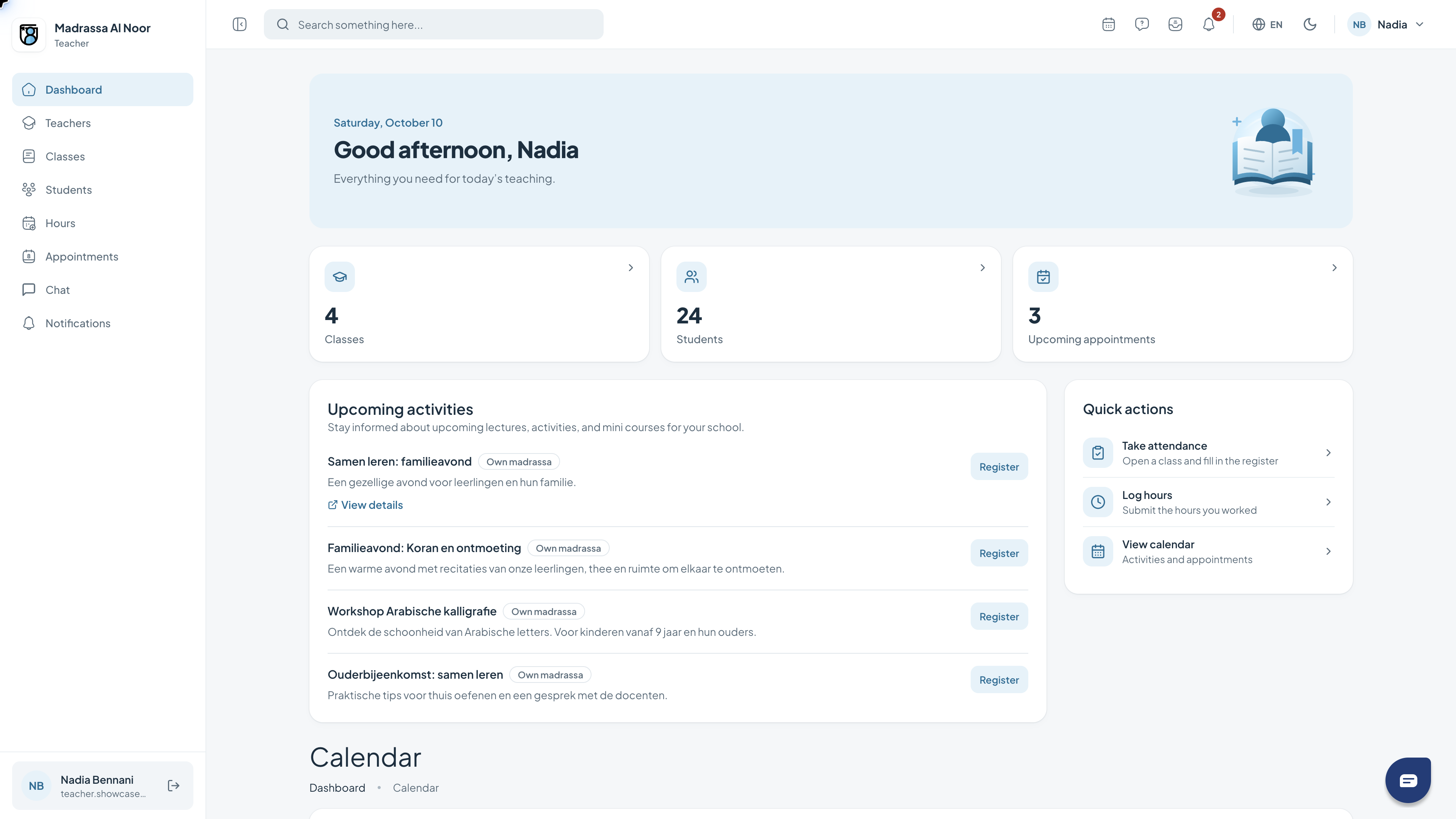
Your dashboard
The dashboard is your starting point. It brings together a greeting, key figures, activities and shortcuts relevant to your role.
- Review the key figures at the top.
- Use the quick actions to open a feature.
- Read the activities and check which are relevant to you.
02
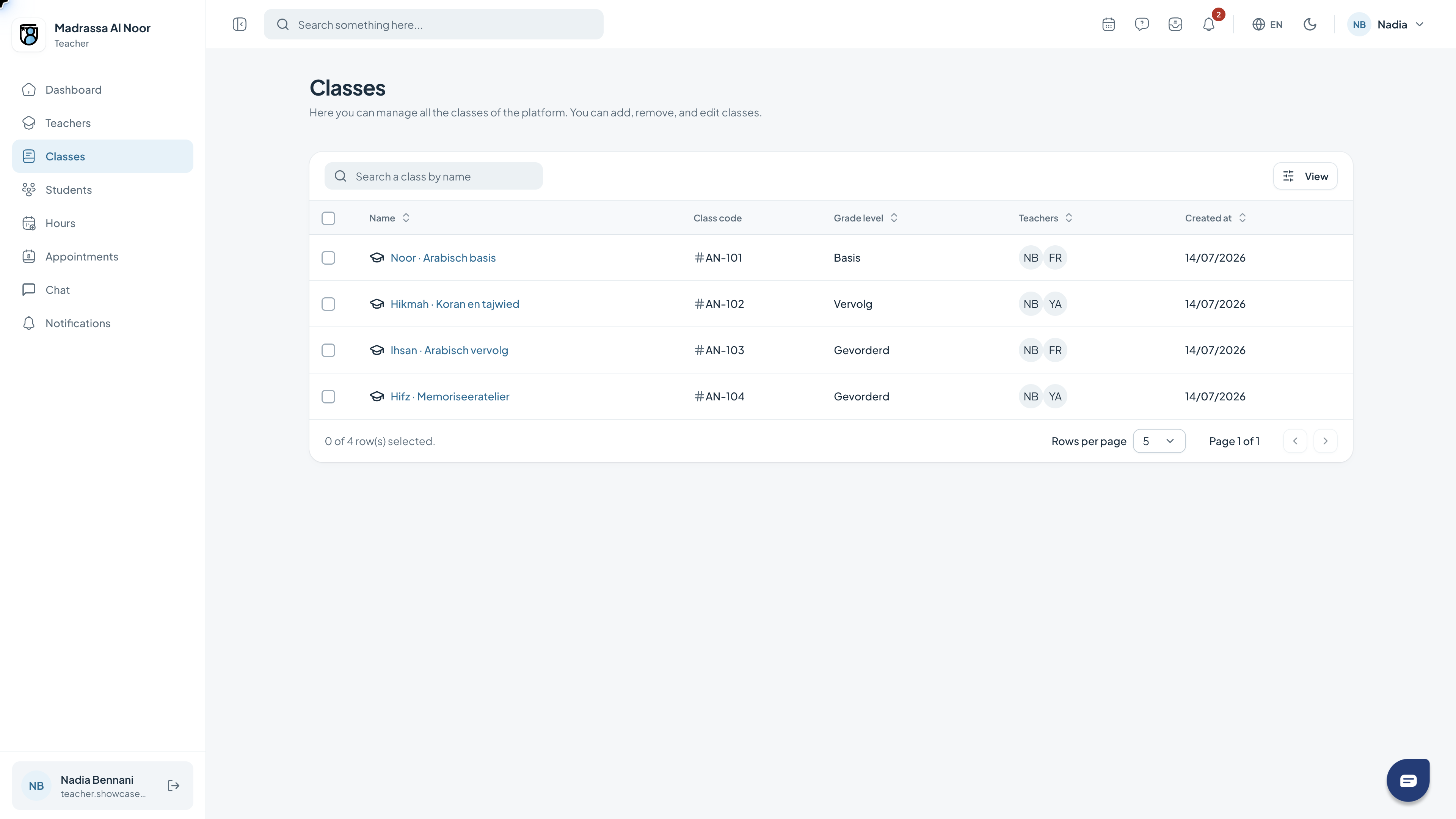
Finding classes
The class list helps you find the right group. Available classes and actions depend on your role.
- Find the class in the list.
- Use filters to narrow the overview.
- Open the class to see its available teaching features.
03
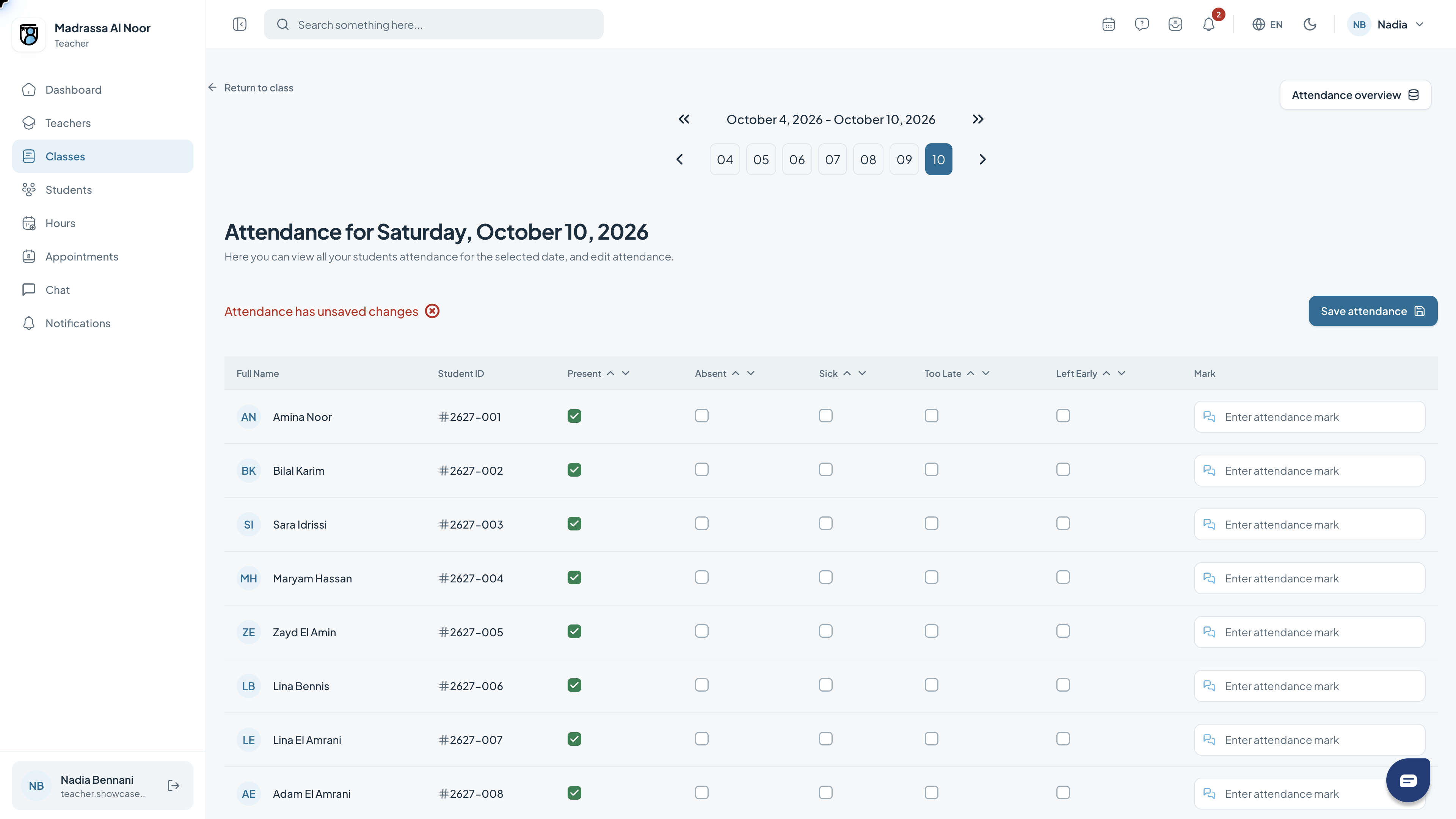
Recording attendance
The attendance register shows students for a class and lesson date. Check the date first, then select the appropriate attendance status.
- Open the attendance register for your class.
- Check the lesson date and period.
- Record the appropriate status for each student.
04
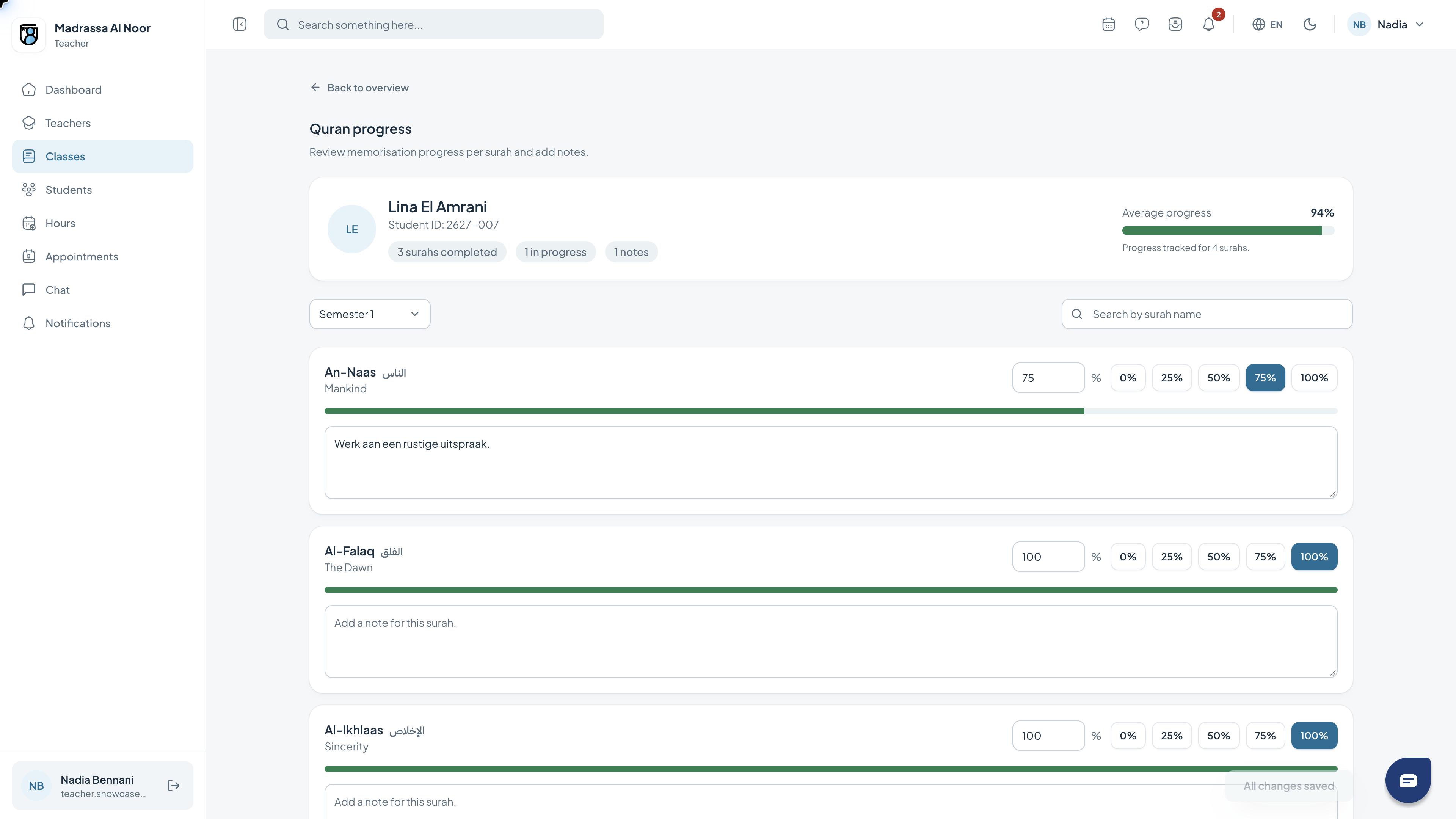
Following Quran and hifz
The Quran overview shows a student’s progress by surah. Progress bars show what has been learned and where more practice is needed.
- Open the Quran feature within the class.
- Check which student is selected.
- Review the surahs and update progress using the available controls.
Need a hand?
If a feature is missing, check your role with the school administrator. For help with access or using the portal, contact support.
Get support